 palmER
AI Reference Not Responding.
Fix palmEM AI Reference issues with clear, step-by-step troubleshooting for iOS and Android. Get your emergency reference working again fast.
If the AI Reference feature in palmEM AI isn't responding or seems frozen, these troubleshooting steps will usually resolve the issue. Most problems are caused by cached data that needs to be cleared.
iOS Troubleshooting
First Steps (Most Common Fix)
This resolves the issue for most users:
- 01Restart your device
Restart your iPhone/iPad to clear temporary conflicts.
- 02Clear Safari website data
- Open Settings on your iPhone/iPad
- Scroll to Safari
- Tap Advanced > Website Data
- Search for "palm-er"
- Swipe left on any palm-er.com entries and tap Delete
- 03Force close palmEM AI
- Swipe up from the bottom (or double-click home button)
- Swipe up on palmEM to close it completely
- 04Reopen palmEM AI
Launch the app - the AI Reference should now work.
If the Problem Persists on iOS
If clearing website data doesn't resolve the issue, try a fresh installation:
Before You Begin
You'll need to sign back into your palmEM account after reinstalling. Make sure you know your palmEM account email - it may be different from your Apple ID email.
Find your palmEM email in:
- The welcome email you received when you signed up
- The app menu (☰) — your account email is shown at the top, under the palmEM logo
Your notes will sync back automatically, but you'll need to re-add your bookmarks.
Reinstallation steps:
- 01Force close palmEM AI
Swipe up from the bottom or double-click home button, then swipe up on palmEM AI.
- 02Verify Safari data is cleared
Follow the steps above to clear Safari website data.
- 03Delete palmEM AI
Long press the app icon and tap Remove App.
- 04Reinstall from App Store
Download palmEM AI from the App Store.
- 05Sign in to your account
Log in with your credentials - your notes will sync automatically.
Android Troubleshooting
First Steps (Most Common Fix)
Clear the app cache to resolve most AI Reference issues:
Device Variations
These steps may vary slightly depending on your Android device manufacturer (Samsung, Google, etc.). Look for app storage settings in your device's Settings menu.
- 01Restart your device
Power off and restart your Android device to clear temporary conflicts.
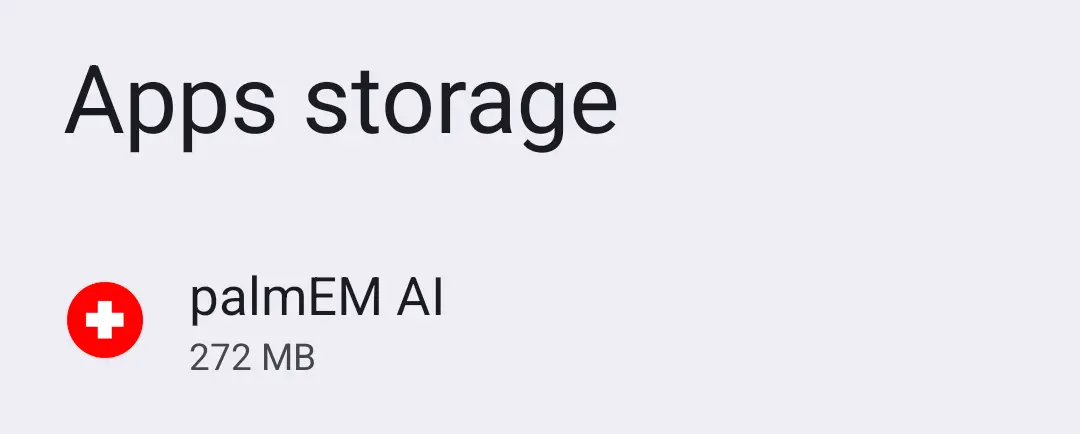
- 02Navigate to app settings
Open Settings > Apps (may be under Storage > Apps) > palmEM
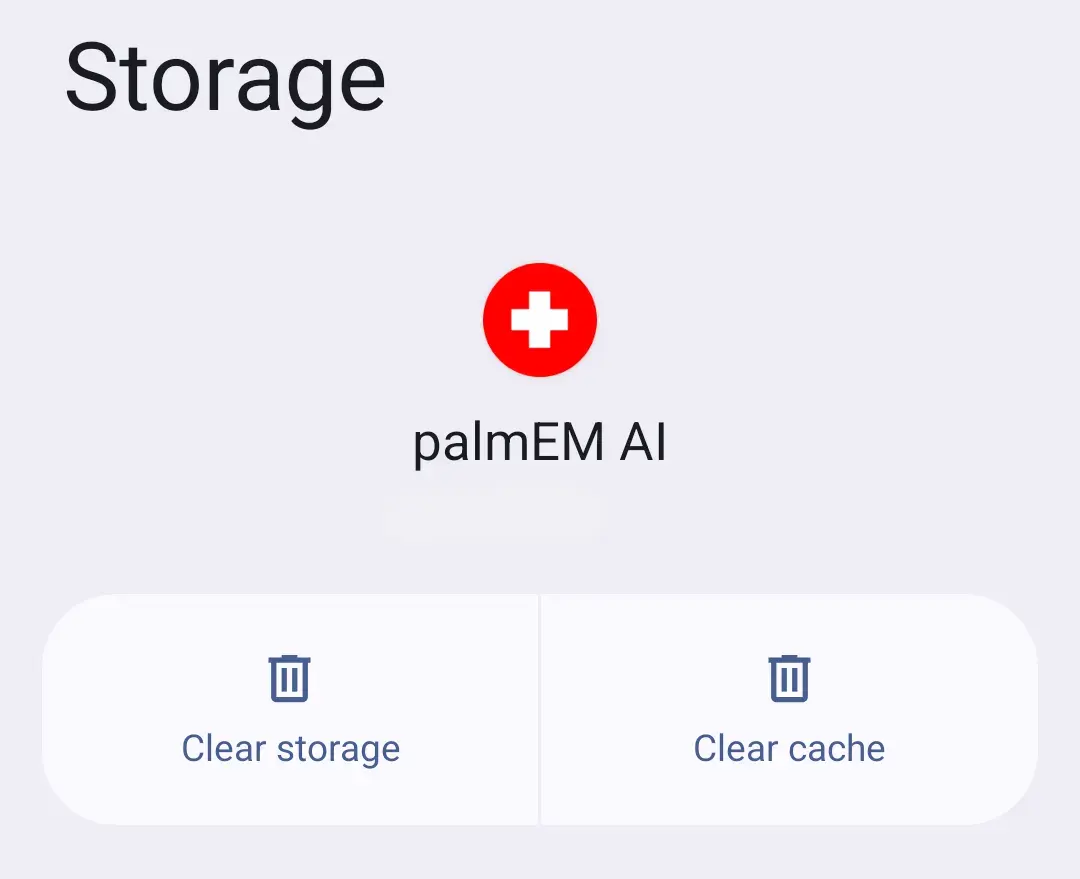
- 03Clear cache
Tap Clear cache (NOT Clear storage - that erases your bookmarks).
- 04Restart palmEM AI
Close and reopen the app - the AI Reference should now work.
If the Problem Persists on Android
If clearing cache doesn't resolve the issue, try a fresh installation:
Before You Begin
You'll need to sign back into your palmEM account after reinstalling. Make sure you know your palmEM account email - it may be different from your Google Account email.
Find your palmEM email in:
- The welcome email you received when you signed up
- The app menu (☰) — your account email is shown at the top, under the palmEM logo
Your notes will sync back automatically, but you'll need to re-add your bookmarks.
Reinstallation steps:
- 01Clear cache and storage
Go to Settings > Apps > palmEM and tap both Clear cache and Clear storage (removes bookmarks locally).
- 02Uninstall palmEM AI
Open Google Play Store, tap your Profile icon (top right), select Manage apps & devices > Manage, find palmEM and tap Uninstall.
- 03Reinstall from Google Play
Download palmEM AI from the Play Store.
- 04Sign in to your account
Log in with your credentials - your notes will sync automatically.
Still Having Issues?
If these steps don't resolve the problem, contact our support team and include:
- Your device type and OS version
- A description of what happens when you try to use AI Reference
- Any error messages you're seeing
We'll get you back up and running as quickly as possible.