 palmER
Ambient Scribing.
Ambient scribing built for emergency medicine. Start a session on the palmER mobile app or web, and palmER drafts your HPI and Physical Exam in seconds.
palmER listens during your patient encounter and writes your HPI and Physical Exam notes automatically. Start a session at the bedside, walk out of the room with your chart already drafted, then review and refine on the web.
Capture at the bedside, finish on the web
Start an Ambient Scribe session on the mobile app or the web platform while you focus on the patient. Your HPI and Exam draft automatically. Ambient Scribe also picks up the results, plans, consults, reassessments, and disposition you discuss and adds them to your MDM. Then open the web platform to review them, generate the MDM, and finalize the chart. Same account, same patients, kept in sync.
Two Ways to Scribe
- palmER mobile app (best for the bedside). A native iOS and Android app that listens reliably in the background, even when your screen locks. The simplest way to scribe on a phone.
- Web platform. Scribe in your browser at platform.palm-er.com on any computer, including one in the room. Click Start Ambient Scribe in the upper right to begin.
Both use the same patient list and produce the same auto-generated notes.
Scribe with the Mobile App
First time here? Install the app and sign in using Installation and Accounts.
- 01
Pick or add a patient
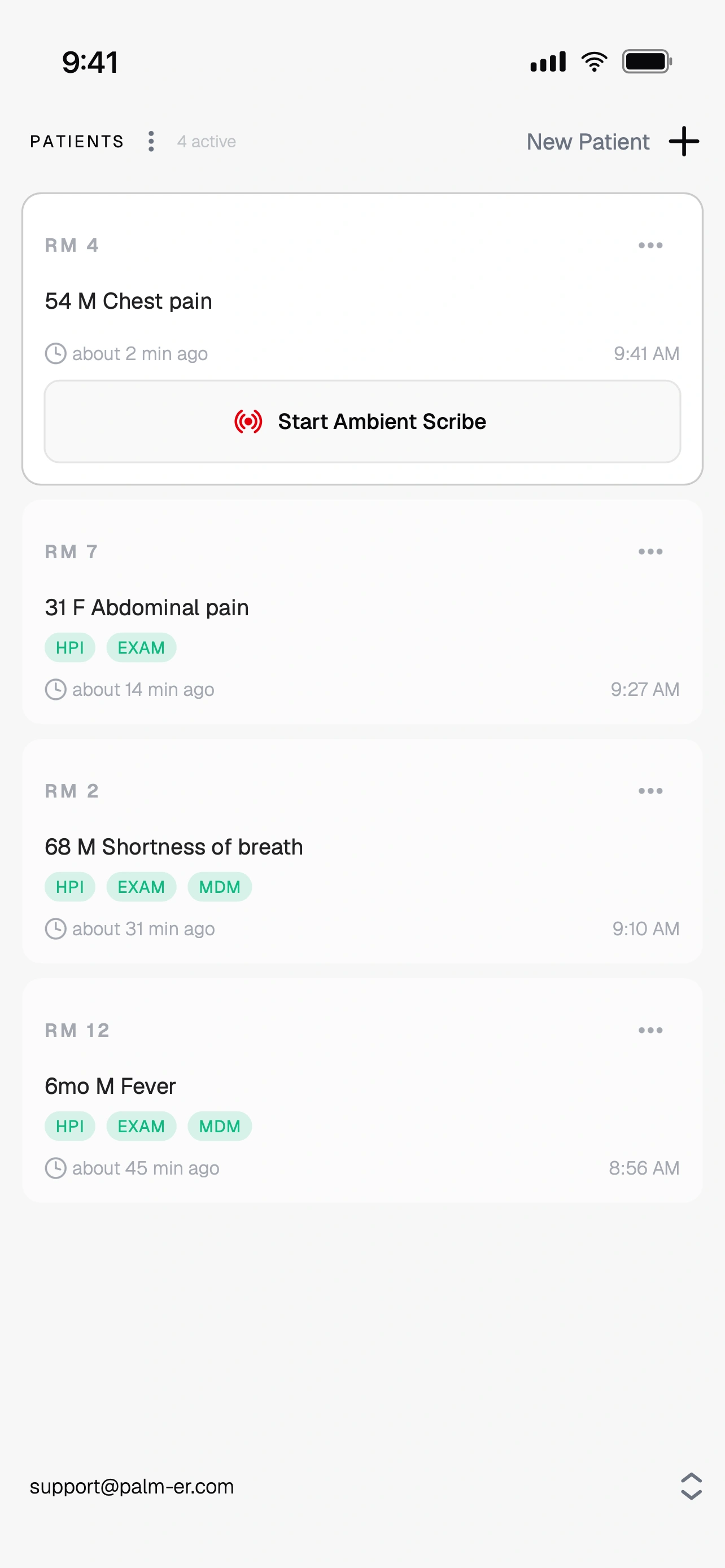
Open the app to your patient list. Tap New Patient to add a room number, age, sex, and chief complaint, or select an existing patient.
- 02
Start Ambient Scribe
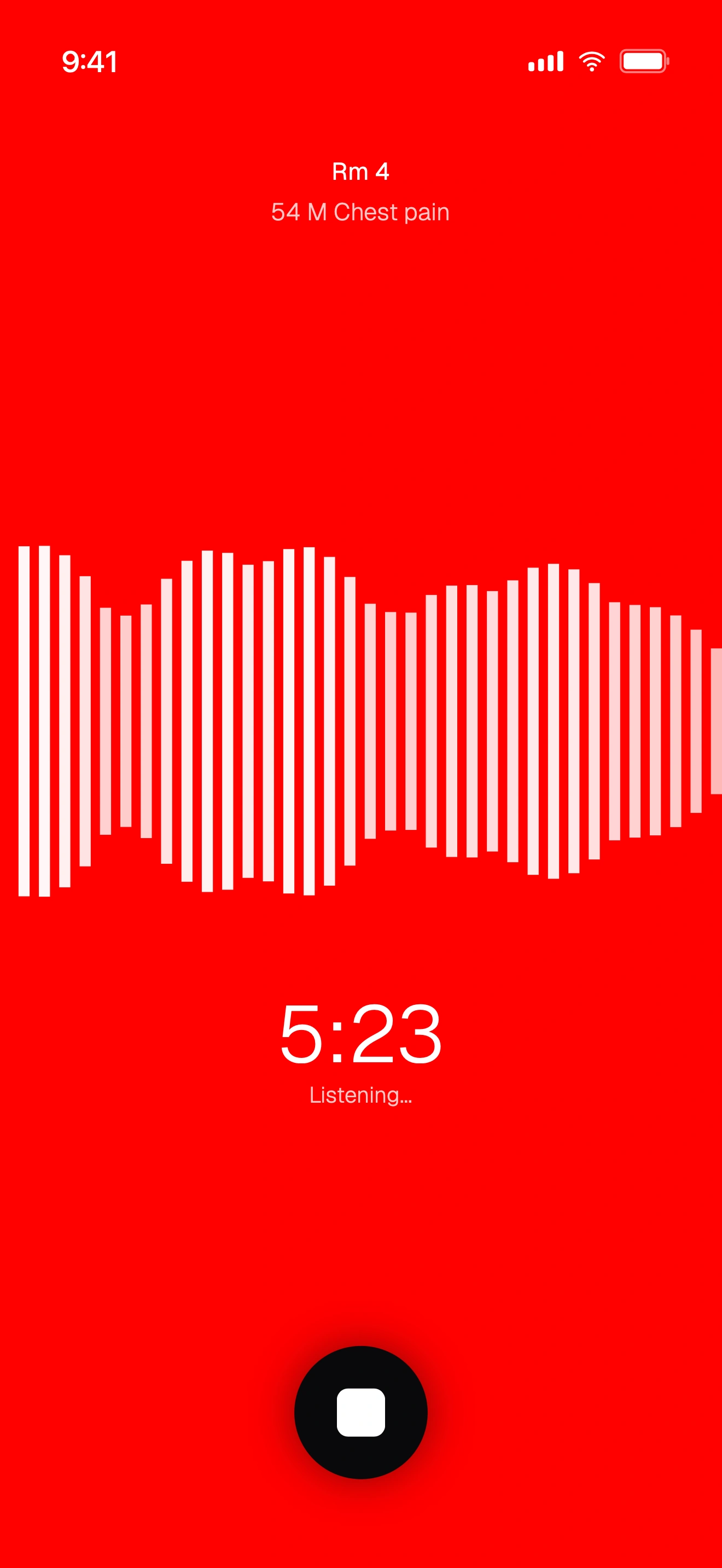
Select the patient and tap Start Ambient Scribe. See your patient while palmER listens in the background. The live waveform moves as it picks up sound, so you can confirm your microphone is working.
- 03
Pause and resume if you step away (optional)
Need to pause mid-encounter? Press and hold the stop button to pause the session. Tap Resume to continue the same session, or Stop to finish. Pausing holds through a screen lock or app switch.
- 04
Stop when you're done
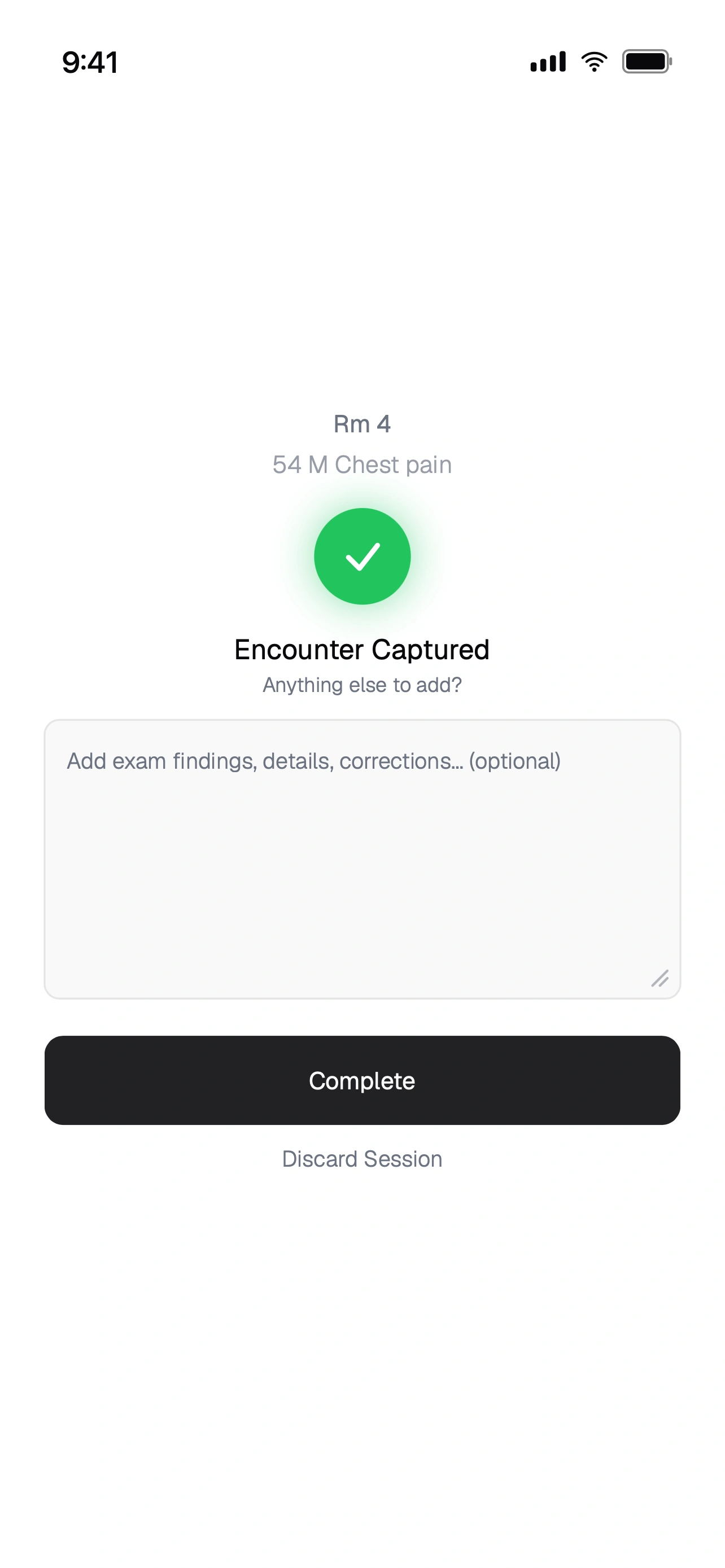
Tap the stop button. You'll see the Encounter Captured screen.
- 05
Add anything that wasn't said aloud (optional)
Add exam findings, details, or corrections. palmER includes them when it writes your notes. This is optional, and you can always edit later on the web.
- 06
Tap Complete
Tap Complete and palmER drafts your HPI and Physical Exam. Watch the patient card update as the notes generate. (Changed your mind? Tap Discard Session to discard the encounter with nothing saved.)
Listening continues through a screen lock
The app keeps listening when your screen locks or you switch apps, so you can slip your phone in your pocket and stay focused on your patient.
Scribe on the Web
On the web the flow is nearly identical. The main difference: Start Ambient Scribe sits in the upper right of the screen, not on the patient card. Sign in at platform.palm-er.com on any computer, pick or create a patient, and click Start Ambient Scribe in the upper right. See your patient, click the stop button when you're done, add anything that wasn't said aloud, and click Complete. Keep the browser tab open while scribing.
To revisit a transcript later, open the more options menu (⋯) on the patient card and select View/Edit Transcript.
After You Finish
- HPI and Physical Exam generate automatically in seconds. Review and refine them on the web in Chart View. Your first session always drafts both. After that, a session with nothing new for a note leaves that note unchanged, so a results or discharge conversation does not rewrite your HPI or Exam.
- Clinical details you discuss are added to your MDM. Ambient Scribe picks up the results, plans, consults, reassessments, and disposition you discuss. Edit them anytime in the MDM section on the web platform. See Clinical details captured in Patient Mode.
- Start your MDM when you're ready. Paste your chart into the MDM Assistant on the web platform. palmER brings the chart and captured encounter details together in a structured MDM in seconds. New details from later sessions update the existing MDM automatically.
- Scribe more than once. You can scribe additional conversations with the same patient. A session with new history or exam findings re-generates that note as a new version, and you can switch between versions with the branch picker.
Prefer to speak your prompts? Use Dictation
Ambient Scribing captures your conversation with the patient, writes the HPI and Exam notes for you, and adds the clinical details you discuss to your MDM. If you just want to speak a prompt instead of typing it, use the mic button in any prompt box. See Dictation for how the two differ.
Discharge Instructions After the MDM
In Patient Mode, palmER automatically writes discharge instructions. Find them below MDM in Chart View or in the Discharge Instructions tab in Chat View. palmER updates the instructions when your MDM changes.
See the DischargER guide for more information.
Privacy & Security
No Audio Is Ever Saved
Audio is ephemeral. It is transcribed and immediately discarded. No audio is ever stored on our servers or sent to any third party, and no one, including us, can listen to any encounter.
- Patient data auto-deletes within 24 hours. Everything you enter, including patient info, transcripts, and generated notes, is permanently deleted within 24 hours.
- Your data is never used for AI training. Your patient encounters and documentation are never used to train AI models.
- Encrypted in transit and at rest. All data is encrypted when sent between your device and our servers, and while stored.
- HIPAA-compliant practices. Your data is only used for one purpose: generating your documentation.
- Inspect it yourself. The self-hosted speech-to-text stack behind Ambient Scribe is open source, so anyone can verify how audio is handled: github.com/palm-ER/self-hosted-asr.
Pro Tips
- Keep the mic near the conversation. On a phone or a room computer, keep it within a few feet for the best transcription quality.
- Speak clearly. palmER handles medical terminology and typical ED background noise well, but mumbling reduces accuracy.
- Use supplemental context. Adding exam findings and corrections after scribing can significantly improve your documentation.