 palmER
Using Bookmarks in palmEM AI.
Use palmEM AI bookmarks to save and organize your go-to topics for fast access during patient care. Simple, efficient, and always ready.
Bookmarks let you save clinical content you reference frequently for one-tap access. Instead of searching for the same protocols, medication doses, or calculators repeatedly, bookmark them once and they're always ready when you need them.
This is especially valuable during critical moments - when you're managing a resuscitation, when you have multiple patients waiting, or when you need to verify a protocol quickly.
Adding a Bookmark
- 01Open the topic you want to save
Navigate to any clinical topic in palmEM AI.
- 02Tap the bookmark icon
Look for the bookmark icon (usually in the top right of the screen) and tap it.
- 03Confirm it's saved
The bookmark icon will fill in or change color to confirm the topic has been saved to your Bookmarks.

That's it. No menus, no confirmations - just one tap and it's saved.
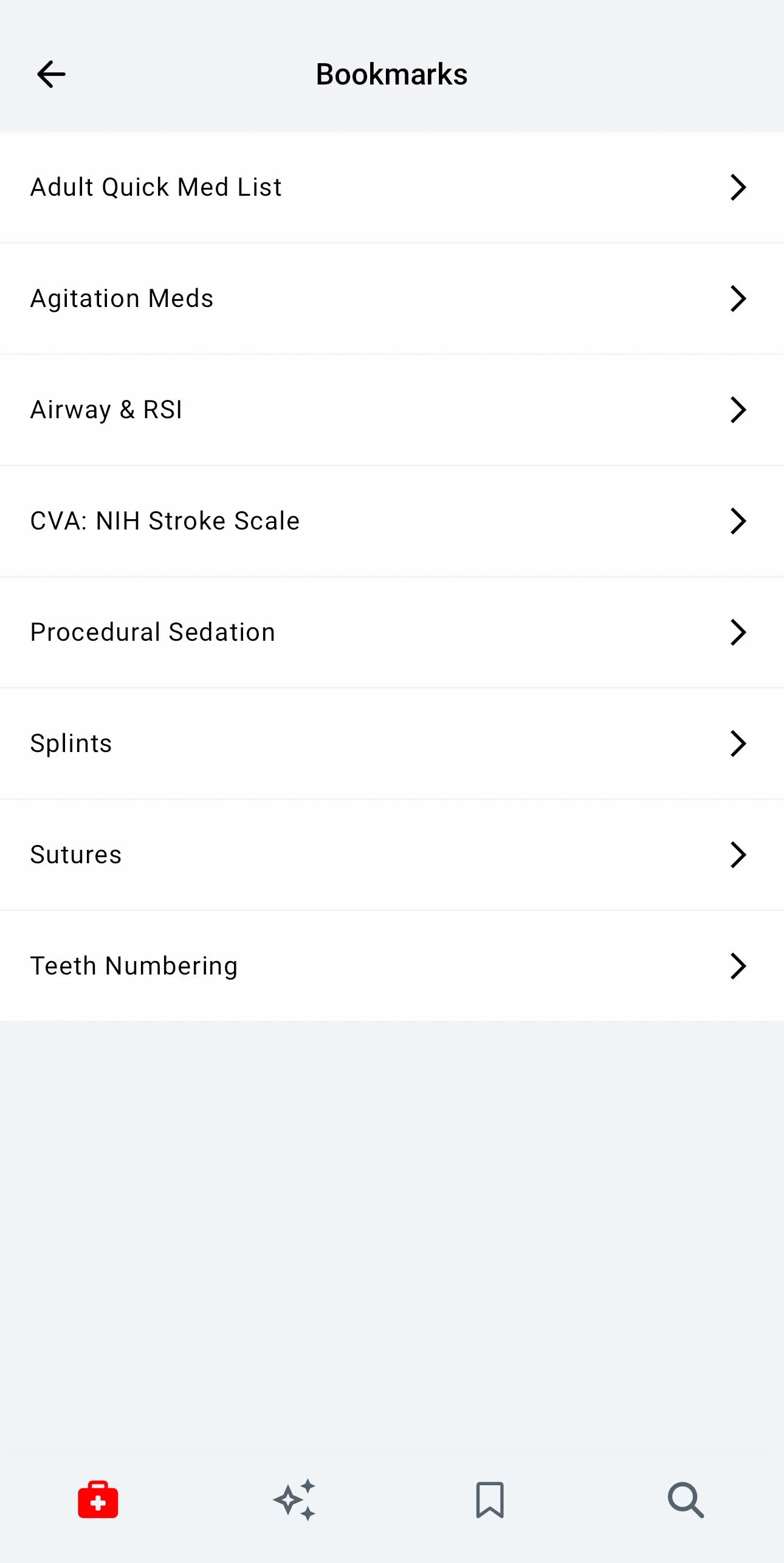
Accessing Your Bookmarks
- 01Open Bookmarks
Tap the Bookmarks icon in the bottom navigation bar.
- 02Browse your saved topics
You'll see a list of all topics you've bookmarked.
- 03Open a bookmarked topic
Tap any bookmark to instantly open that topic.
Your bookmarks are organized in a simple list for fast scrolling and selection.
Removing Bookmarks
You have two ways to remove a bookmark:
Method 1: From within the topic
- Open the bookmarked topic
- Tap the bookmark icon again
- The bookmark is removed
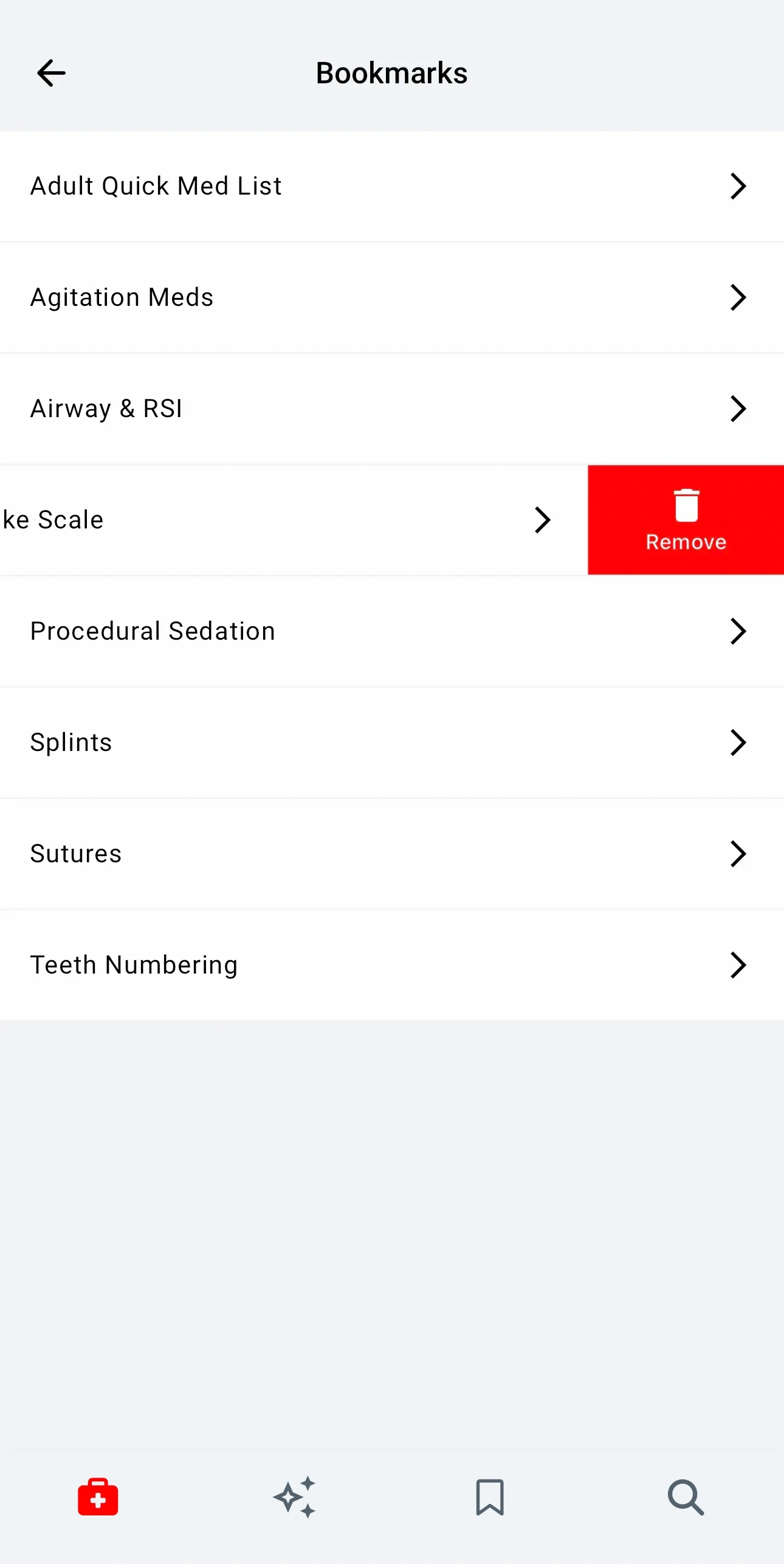
Method 2: From the Bookmarks list
- Go to your Bookmarks tab
- Swipe left on any bookmarked topic
- The bookmark is removed from your list
Clean up your bookmarks periodically to keep the list focused on content you actually use.
Bookmarks vs. Notes
Bookmarks save entire topics for quick access - use them when you reference the same content repeatedly.
Notes let you add custom information to topics - use them to supplement standard content with your institutional protocols or personal pearls.
Use both together: Bookmark your frequently-used topics, then add notes to customize them for your practice.
Bookmarks Work Offline
Your bookmarks are always accessible, even without internet connectivity. Once content is downloaded, your bookmarked topics work completely offline - perfect for rural practice or during network outages.
Tips for Maximum Efficiency
Keep your bookmark list focused:
- If you haven't used a bookmark in months, remove it
- A shorter list means faster scanning during busy shifts
- Quality over quantity
Bookmark as you learn:
- During slower shifts, bookmark topics as you review them
- After managing an uncommon case, bookmark related protocols
- Build your library gradually based on real clinical experience
Combine with AI:
- Bookmark frequently-used content
- Use AI for everything else
- Together, they give you instant access to all palmEM AI content
The goal is simple: make the clinical information you need most available with a single tap. Bookmarks are your personalized quick-reference library within palmEM AI.