 palmER
Migrating Notes from Legacy Versions.
Step-by-step guide to transfer your notes from palmEM versions before v10 to the new cloud-based, encrypted notes system.
If you used palmEM AI before version 10, your notes were stored locally on your device. With version 10 and later, we moved to secure cloud storage with end-to-end encryption. This guide explains why we made this change and how to migrate your old notes.
Why We Changed the Notes System
The old system (pre-v10):
- Notes stored only on your device
- Lost if you deleted the app or changed devices
- Not synced across devices
- No encryption
The new system (v10+):
- Notes stored in secure cloud storage
- Synced across all your devices
- End-to-end encryption
- Automatic backup
- Survives app deletion and device changes
This security improvement required a new data structure, making old notes incompatible with the new system. You'll need to manually migrate them.
Important
If you deleted palmEM AI from your device before version 10, your old notes were deleted with it. This migration guide only works if you haven't deleted the app.
Benefits of the New Cloud Notes System
Enhanced Security: Your notes are encrypted end-to-end. Even we can't read them - only you can access your notes with your account credentials.
Cross-Device Sync: Add a note on your phone during a shift, and it's instantly available on your tablet at home. All your devices stay in sync automatically.
Automatic Backup: Your notes are backed up continuously. Drop your phone in a trauma bay? Your notes are safe in the cloud.
Permanent Storage: Delete the app, reinstall it, switch devices - your notes follow your account, not your device.
How to Migrate Your Legacy Notes
This process works for iOS users who have old notes stored locally. Follow these steps to move them to the new cloud system.
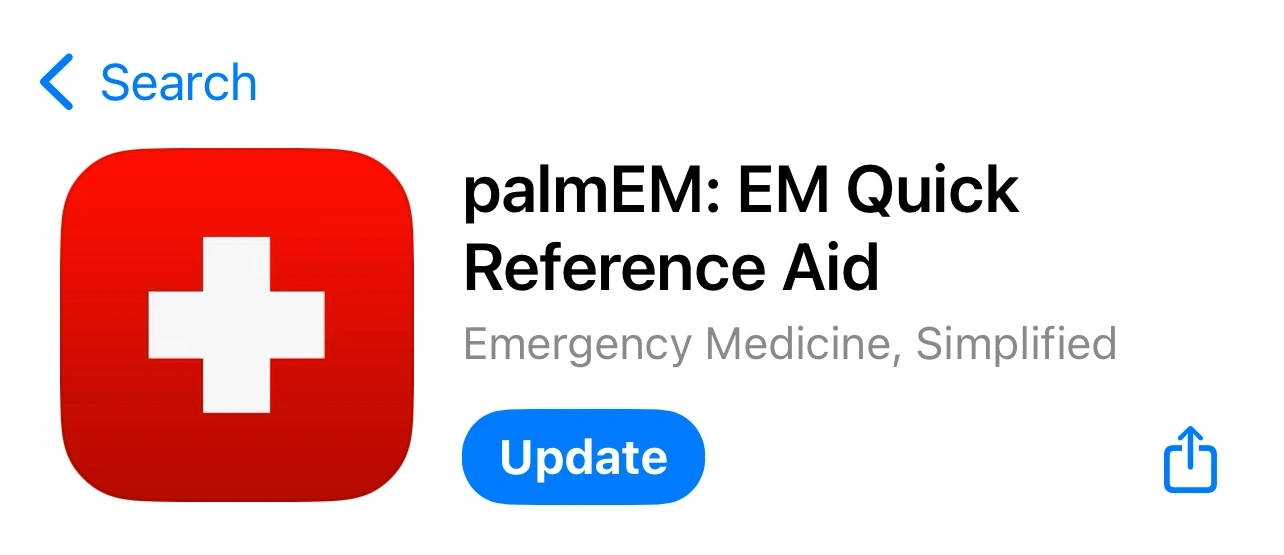
Step 1: Update palmEM AI to the Latest Version
Before migrating, make sure you're running the latest version of palmEM AI:
- Open the App Store
- Tap your profile icon (top right)
- Scroll to see pending updates
- If palmEM AI has an update, tap Update
Alternatively, search for "palmEM" in the App Store or use this link.
Step 2: Find Your Legacy Notes
Your old notes are stored in the Files app on your iOS device:
- Open the Files app (learn about Files)
- Navigate to On My iPhone or On My iPad
- Look for the palmEM folder
- Open it to see your saved notes files
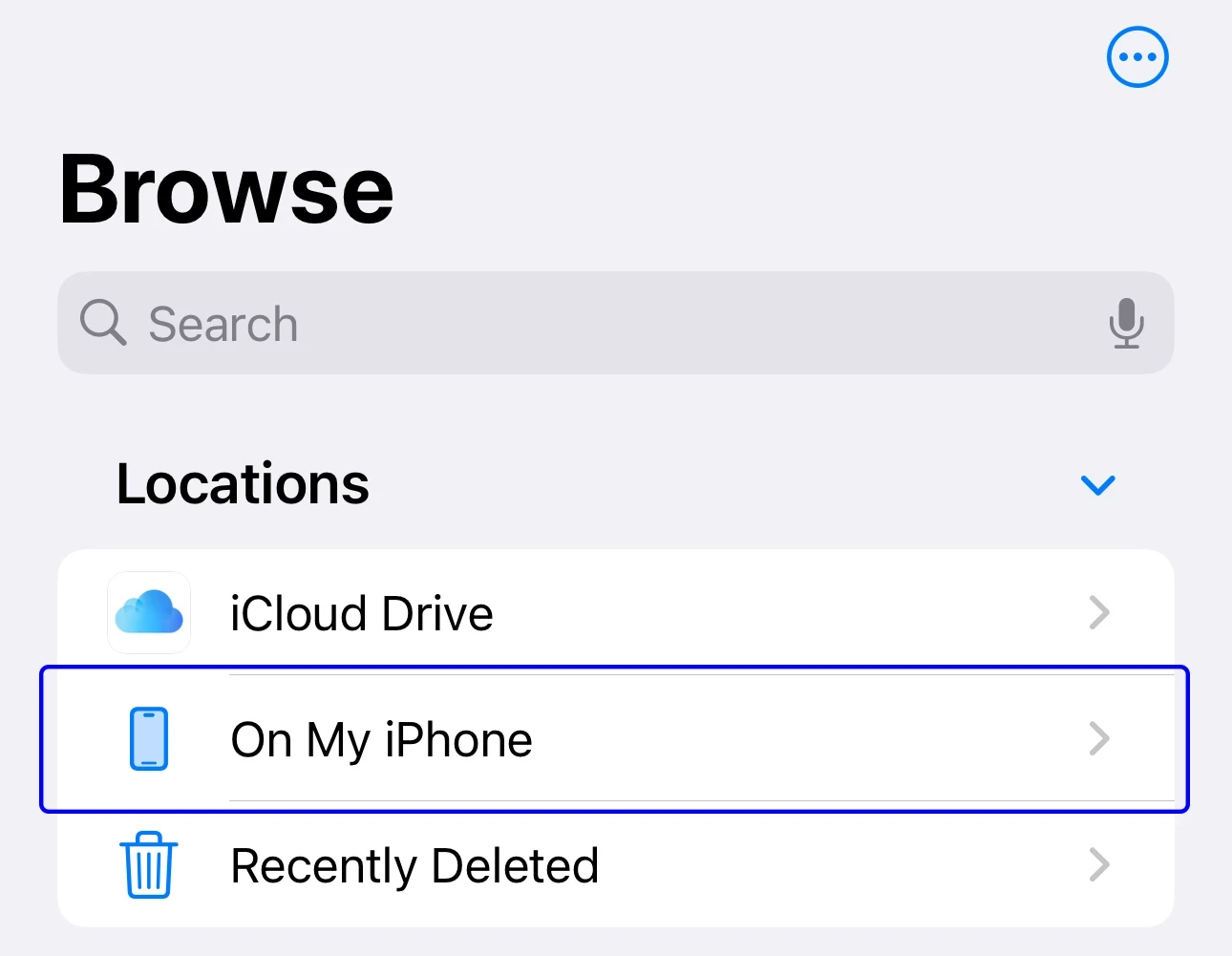
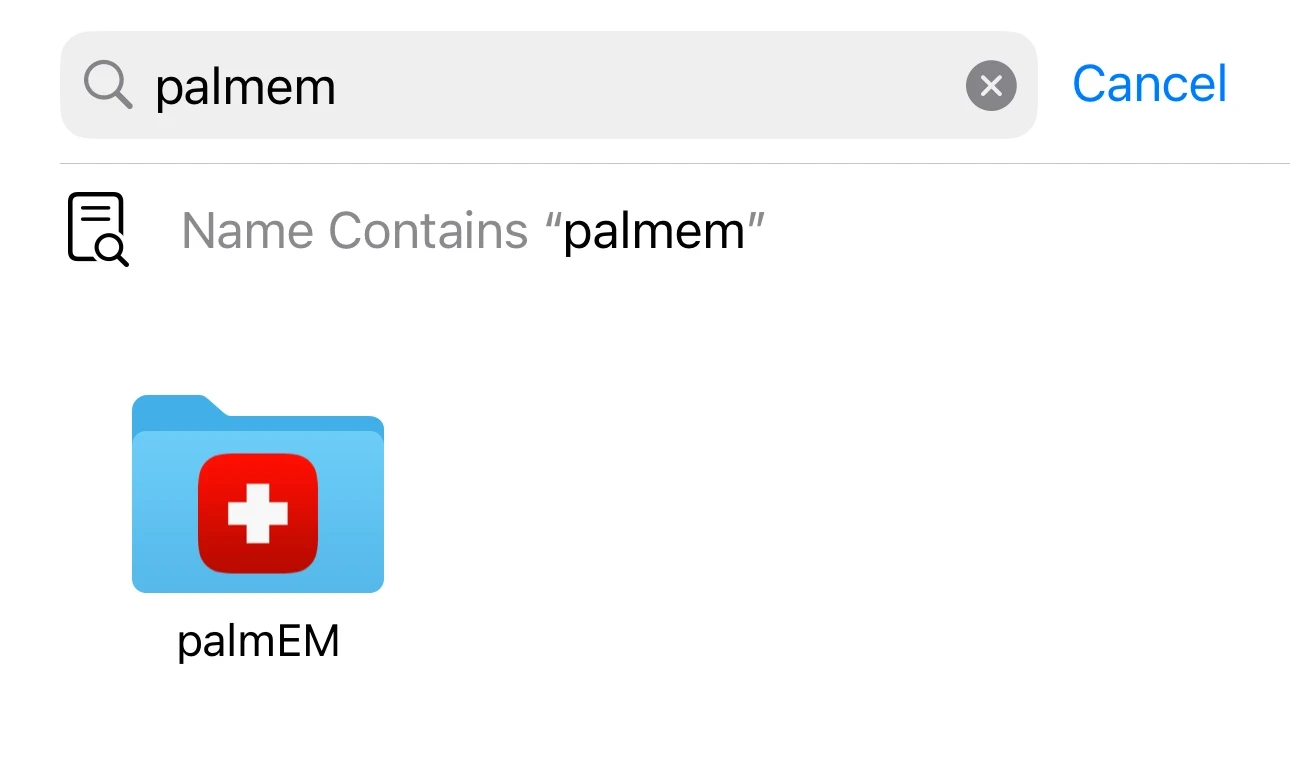
Each file corresponds to a topic you added notes to in the old version.
Step 3: Copy Notes to the New System
Transfer each note individually:
- 01Open a note file in Files app
In the Files app, tap on one of your note files to open it.
- 02Copy the text
Select all the text in the note and copy it.
- 03Navigate to the topic in palmEM AI
Open palmEM AI and find the same topic this note belongs to.
- 04Open the notes field
Tap the notes icon in the upper right corner.
- 05Paste and save
Paste the text into the notes field. Your note automatically saves to the cloud.
- 06Repeat for all notes
Repeat this process for each note file you want to preserve.
Tips for Migration
Prioritize important notes: You don't have to migrate every note. Focus on the ones you actually use.
Update as you go: If your old notes are outdated, this is a good time to revise them with current information.
Delete old files after migrating: Once you've successfully transferred a note to the cloud (verify it's there), you can delete the old file from the Files app.
Verification
After migration, verify your notes are in the cloud:
- 01Open palmEM AI on your iOS device
Launch the app where you migrated your notes.
- 02Navigate to a migrated topic
Find a topic where you added a note.
- 03Check that the note appears
Verify the note content is displayed correctly.
- 04Sign in on another device (optional)
If you have another device, sign in with the same account.
- 05Verify sync
Check that the note appears on the second device, confirming cloud sync is working.
If the note shows up on both devices, migration was successful.
Need Help?
If you're having trouble finding your old notes or migrating them, contact support and we'll walk you through the process.
The security and convenience of the new cloud notes system is worth the one-time effort to migrate. Your future self will thank you when you switch devices and all your notes are already there.